Data Editor
Import & Export
Move data in and out of your tables with first-class CSV and Excel support.
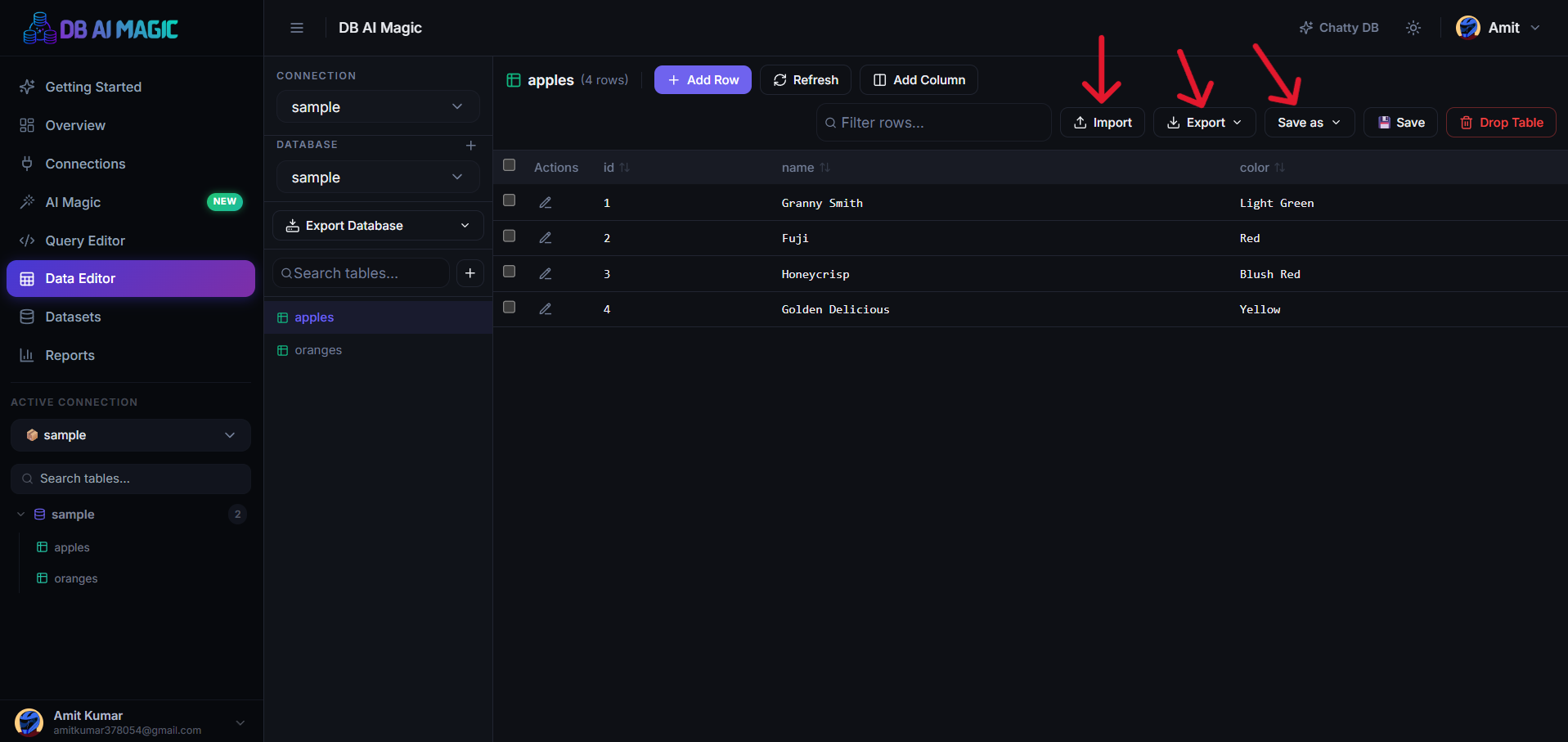
Exporting
Every grid in DB AI Magic — query results, Data Editor, datasets — has an Export button. Choose a format, optionally pick which columns to include, and you get a file in your downloads.
CSV
CSV exports use UTF-8 with comma separators and quoted fields by default. Large exports stream — you can leave the page while the download finishes.
Excel
Excel exports produce a real .xlsx file with column types preserved (numbers stay numbers, dates stay dates). Multiple tables or query results can be exported into a single workbook with one sheet per result.
PDF exports render the visible grid into a paginated document with a header, page numbers, and the export timestamp. Great for sending to non-technical stakeholders.
Full-database export
From a connection's context menu pick Export database. You can choose between an Excel workbook (one sheet per table) or a SQL dump that recreates the schema and data on another server.
Large databases
Importing
Open the target table
Click the table in the Data Editor sidebar so it's loaded in the grid.Click Import
Use the Import button in the toolbar and pick a.csvor.xlsxfile.Map the columns
DB AI Magic auto-matches columns by name. Adjust any that didn't line up, mark columns you want to ignore, and choose how to handle conflicts (skip / upsert).Preview & commit
You get a preview of the first rows after mapping. Hit Import to commit; the import runs in a transaction so a bad row rolls everything back.
Tips for clean imports
- Ensure your CSV uses UTF-8 — Excel sometimes exports as Windows-1252 which can break special characters.
- Date columns convert best when written as ISO 8601 (
YYYY-MM-DDTHH:mm:ssZ). - Empty cells for nullable columns become
NULL; for non-null columns the row is rejected with an explanation. - For huge files, split into multiple imports of ~500k rows each.