Data Editor
Databases & Tables
Create databases, add tables and shape them — all from inside DB AI Magic, without leaving the page.
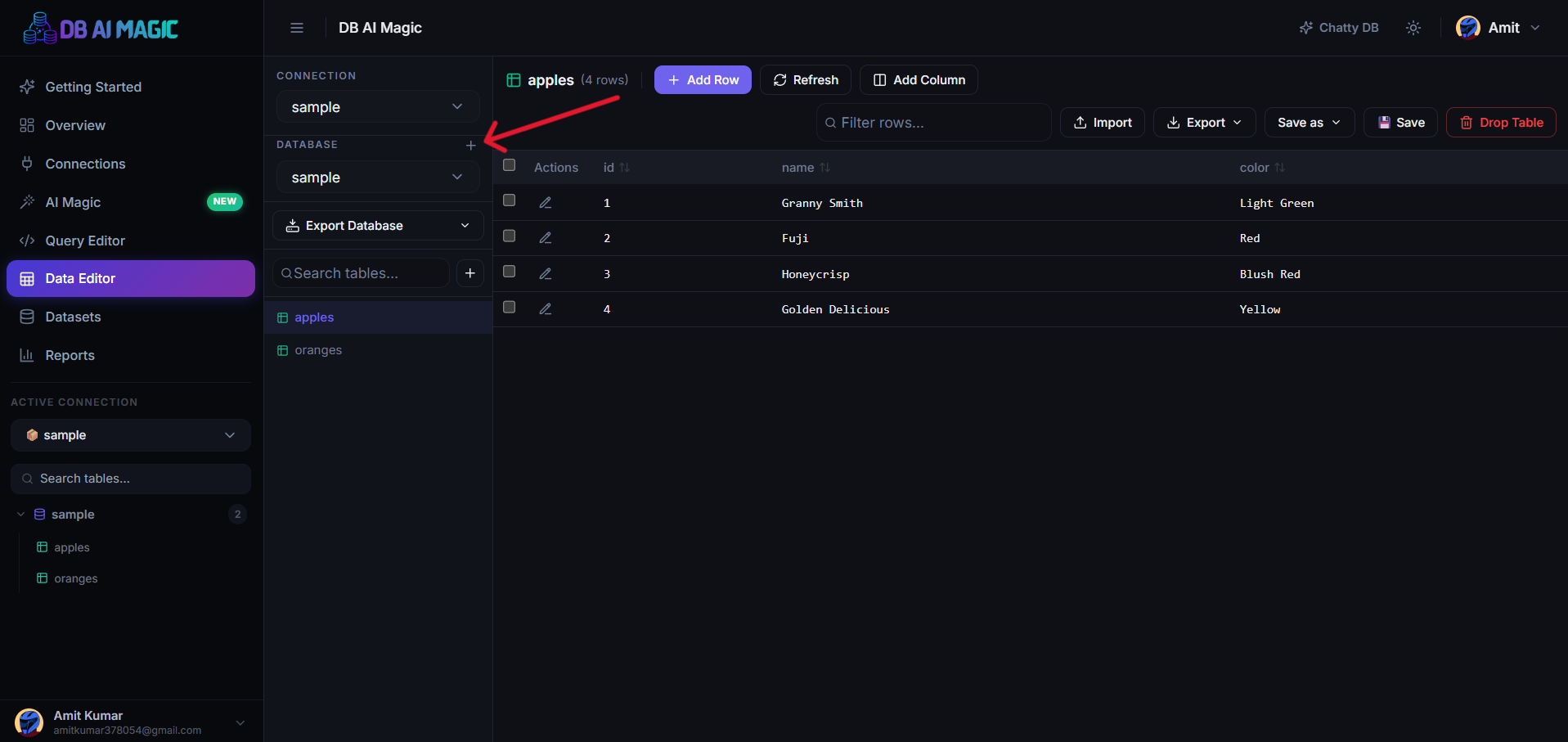
Creating a database
Right-click your connection in the sidebar and pick Create database. Give it a name, choose a default character set or collation if your engine asks for one, and confirm. The new database appears under the connection immediately.
Permissions
CREATEprivileges on the server. If you only have read access we'll surface the error from your database directly.Creating a table
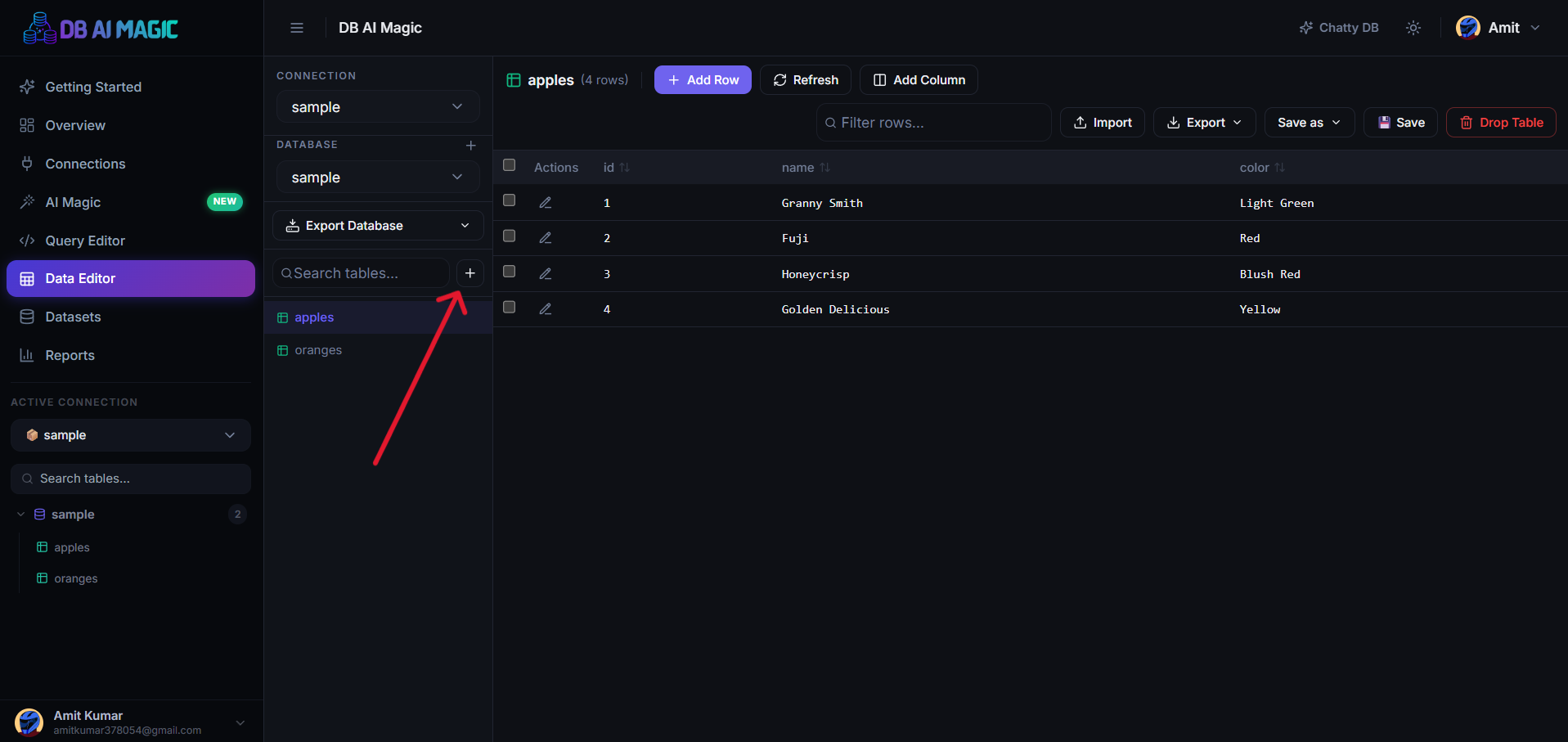
Right-click the database
From the sidebar, click the Plus button which you want the new table and pick Create table.Define columns
Add columns one by one. For each column pick a name, type, default value, nullable flag and (optionally) mark it as part of the primary key.Set the primary key
Tick the PK checkbox on one or more columns. The editor builds the rightPRIMARY KEYclause for your engine.Save
Click Create. The new table appears in the sidebar; clicking it opens it in the Data Editor ready for rows.
Altering a table
Right-click any table for actions like Add column, Rename, Drop column, or Edit table. The grid stays open while you change the structure — when the change succeeds, the grid refreshes automatically with the new shape.
Adding a column
Adding a column to a populated table prompts you for a default value so existing rows have something sensible. For nullable columns you can leave the default blank.
Dropping safely
Permanent
DROP is irreversible. We show a confirmation dialog that requires you to type the table name to proceed.Once dropped, the table vanishes from the sidebar. If you have a backup connection (e.g. a read replica) you can copy the data back before dropping.