AI Magic
Generating Dashboards
Two ways to generate an AI Magic — from the AI Magic hub or directly from a database in the sidebar.
From the AI Magic hub
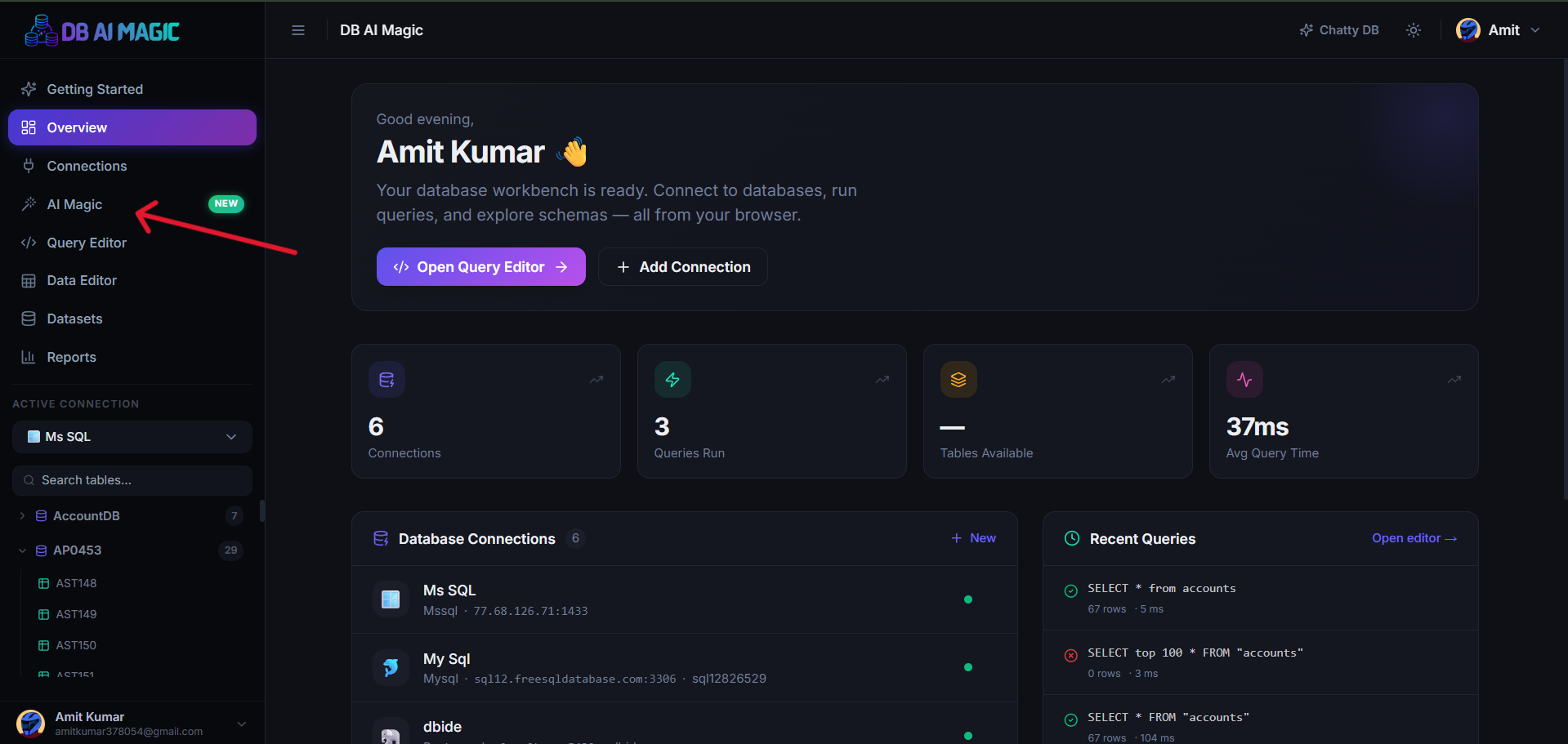
Open AI Magic
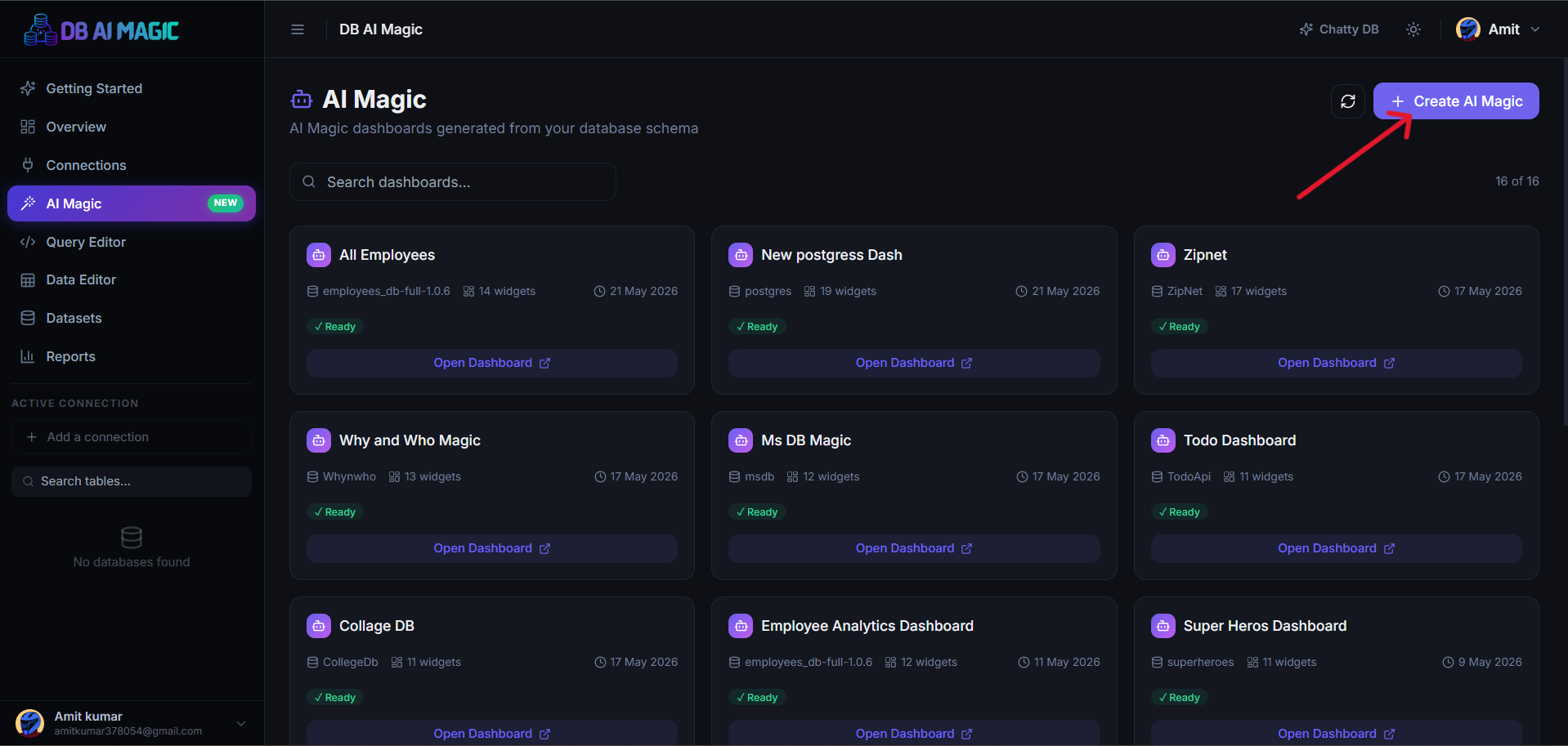
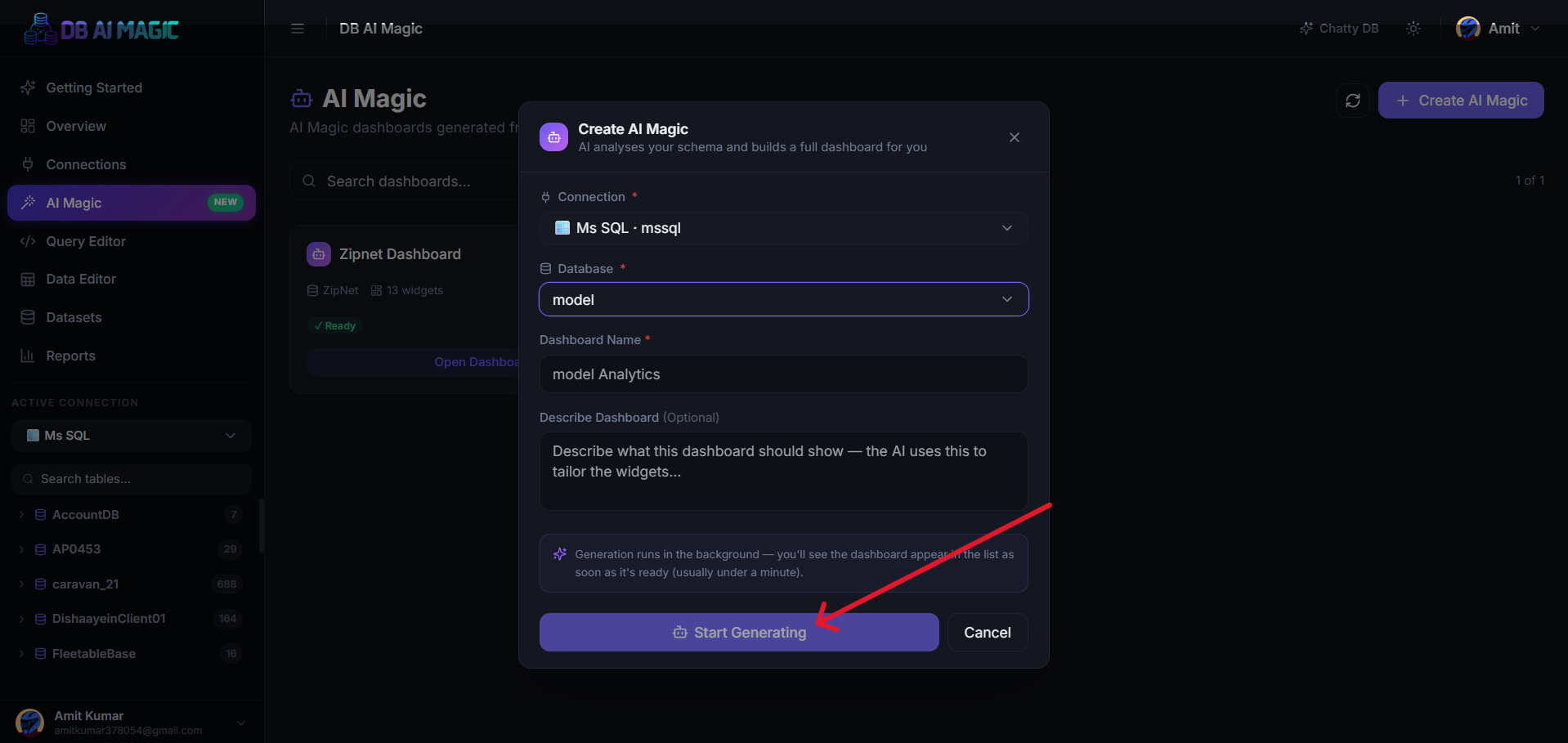
Click AI Magic in the sidebar.Click Create AI Magic
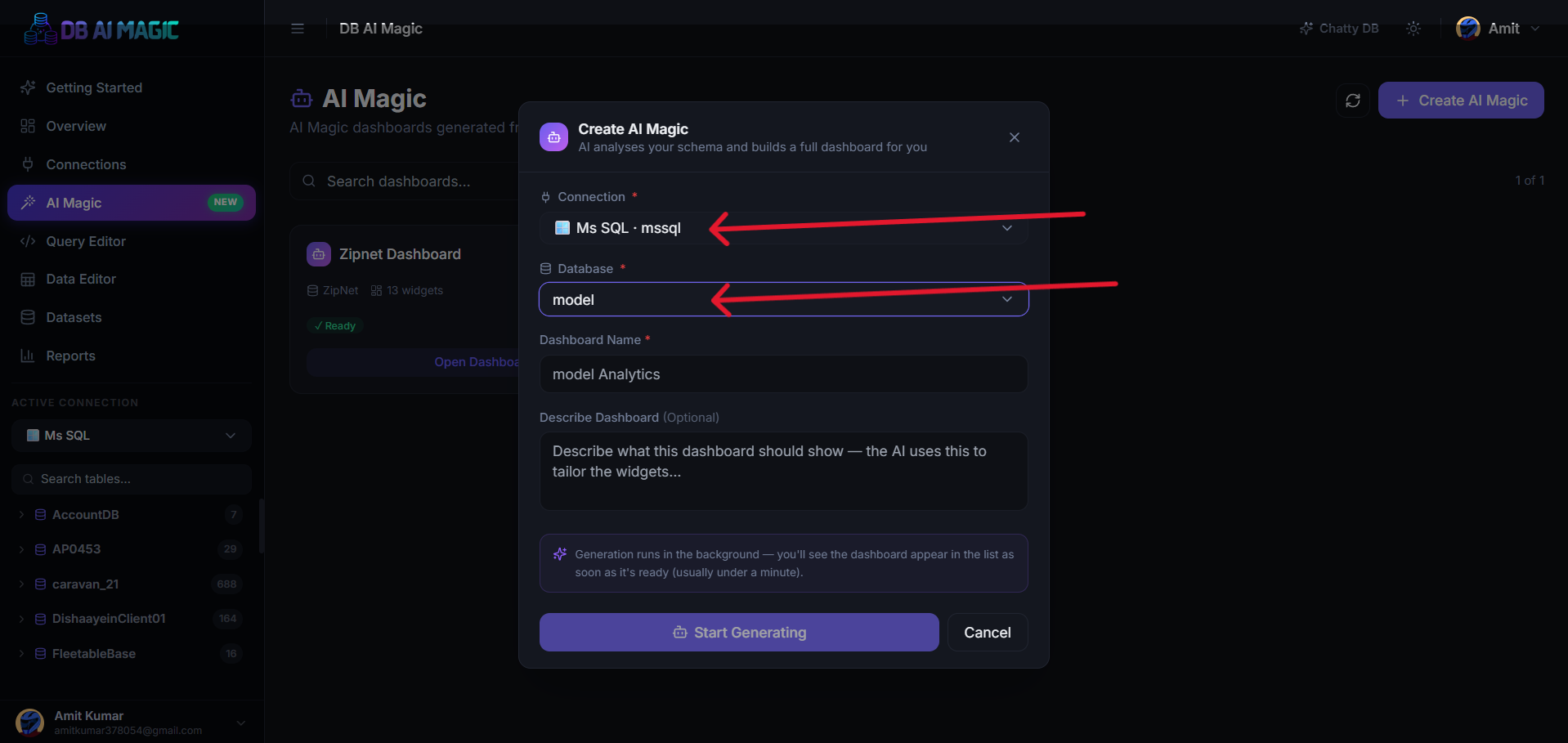
The modal asks for a connection, a database, and an optional one-line description.Select connection and database
PickDescribe (optional)
Free-text hint to the AI. Examples: “Sales pipeline by region, monthly trend” or “Operational health for the support team”.Generate
The modal closes and a generation toast appears. When the toast says Ready, click it to open the dashboard.
From the sidebar
Right-click any database in the sidebar and pick Create AI Dashboard. The modal opens with the connection and database pre-filled — you only need to name and optionally describe.
Writing a good prompt
The description is optional but a sentence of context makes the result far more relevant. A good prompt:
- Mentions the audience — sales team, oncall engineer, CFO
- Mentions the time window — last 30 days, this quarter
- Mentions which tables matter if your schema has many
Example prompts
Vague: “Show me sales.”
Better: “Sales pipeline for the SDR team — opportunities by stage, conversion rates, deals closing this quarter, top accounts by revenue.”
After generation
Open the dashboard from the hub. Every widget shows its SQL underneath — you can:
- Edit the SQL of a single widget to refine the result
- Swap the chart type
- Add a filter to slice every widget
- Delete widgets you don't need
- Save the dashboard with a custom name
Filters
Generated dashboards include a filter bar with the most likely slicers (date range, primary dimension). Adjust the values and every widget that depends on the filter updates immediately.
Troubleshooting
- Generation failed— the AI couldn't produce valid SQL after retries. Most common cause: the database is empty or has no obvious relationships. Add a description that points to specific tables.
- Empty widgets — the SQL ran but returned zero rows. Check that the database has data for the period the widget chose, or adjust the filters.
- Wrong dimension— open the widget's SQL and replace the column manually, or rerun generation with a clearer description.